Appearance
Install the extension
Do this once on each computer that will run CMRA Sync. Anyone who can install programs on that computer can do it.
Not available yet
CMRA Sync is not in the Chrome Web Store yet. Until it is, we give you the extension as a folder (or a zip file), and you add it to your browser by hand with the steps below.
You need Chrome or Edge, version 111 or newer.
Steps
- Get the CMRA Sync folder from us. If it came as a zip file, right-click it and pick Extract All. The folder is named like
cmra-sync-0.27.0. - Move the folder somewhere permanent, such as
Documents. Your browser keeps reading from it, so do not delete it or move it later. - In Chrome, type
chrome://extensionsin the address bar and press Enter. In Edge, typeedge://extensions. - Turn on Developer mode. In Chrome it is the switch at the top right. In Edge it is on the left.
- Click Load unpacked.
- Pick the CMRA Sync folder and click Select Folder.
The CMRA Sync setup page opens in a new tab. CMRA Sync now shows in your list of extensions.
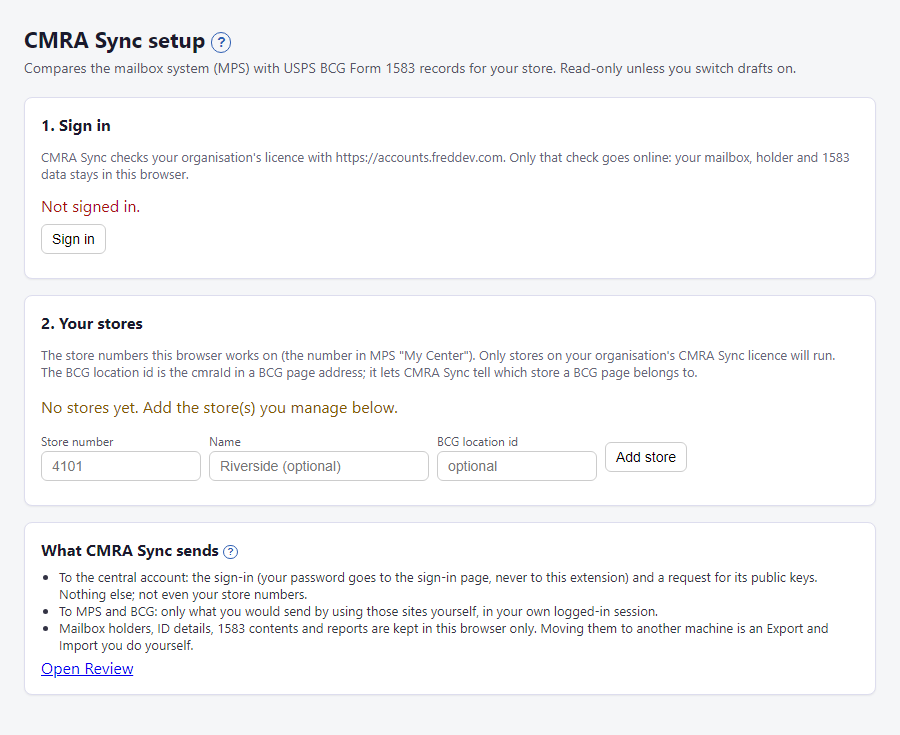
Next, set up your store and sign in.
Find it again later
Click the puzzle-piece icon in the toolbar, then click CMRA Sync. The setup page opens. Click the pin next to it to keep the icon on your toolbar.
What happens next
Nothing runs yet. CMRA Sync stays quiet until you add a store and sign in.
If something looks wrong
- You see two CMRA Sync panels on MPS or BCG. An older copy is still installed. Removing an extension also deletes the data it saved, and each copy keeps its own. Before you click Remove on the old one, use Export store data in it (see Move to another computer), then import that file into the new one.
- The setup page did not open. Click the extension's icon in the toolbar.
- Chrome says the folder is not valid. Pick the folder that has a file named
manifest.jsondirectly inside it, not a folder one level above. - Other problems: Troubleshooting.