Appearance
Read the reconciliation
Use the Review page to see every difference between MPS and BCG and what to do about each one. Owners and managers.
Steps
- Open Review. Click Open Review in the MPS or BCG panel, or at the bottom of the setup page.
- If you have more than one store, pick it in the first list at the top. The second list holds your earlier reports.
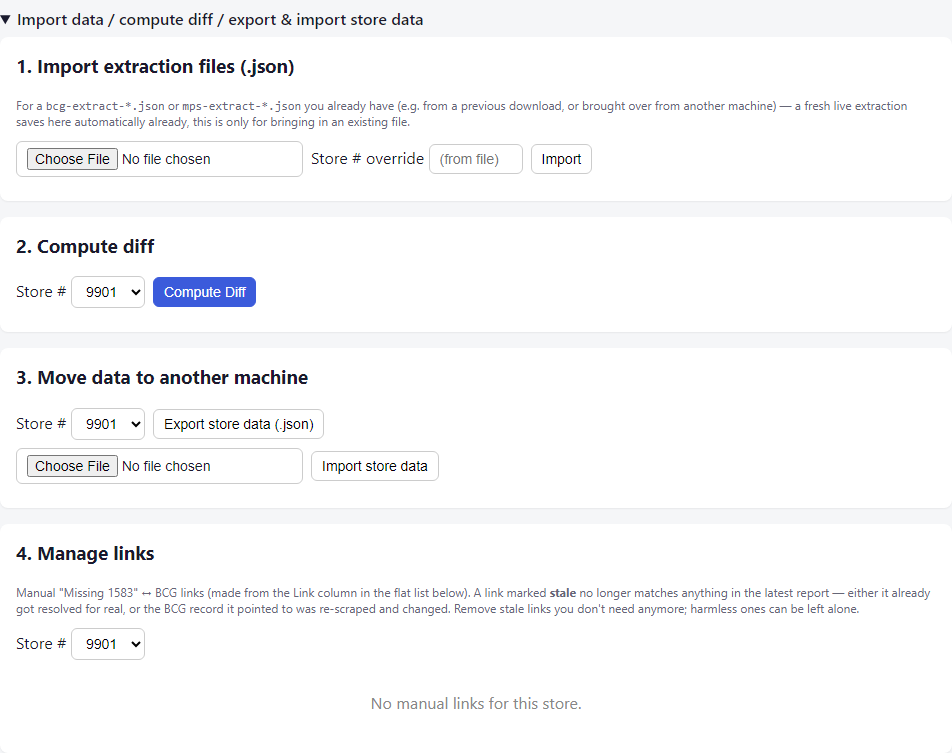
- Open the Import data / compute diff / export & import store data bar, pick your store under 2. Compute diff and click Compute Diff. (Review also updates by itself when new data is saved.)
- Read the notes at the top, then the numbers, then the list.
The notes at the top
Coloured bars tell you how fresh the data is.
- MPS data is ... old and BCG data is ... old. After four hours the bar says (stale). Read that side again before you act on anything.
- MPS extraction FAILED for ... box(es). CMRA Sync could not read those boxes. Their rows are not reliable. Read each one again with Scrape box(es) in the MPS panel.
- A licence note, if your licence needs attention. See Licence grace.
The numbers
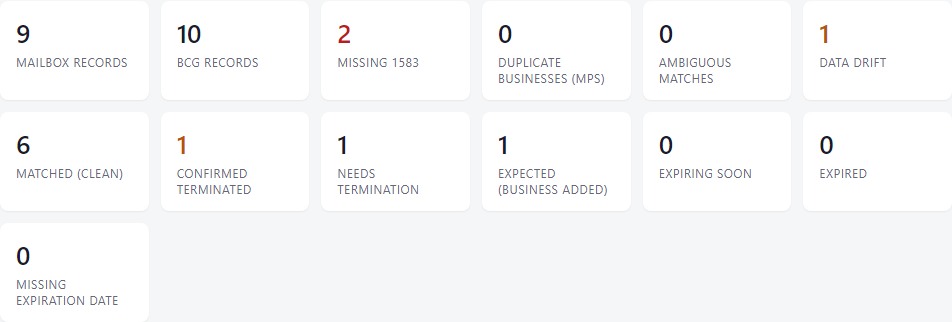
Each box counts one kind of result. Red and orange ones need a look. The same words are the filter buttons above the list.
The list
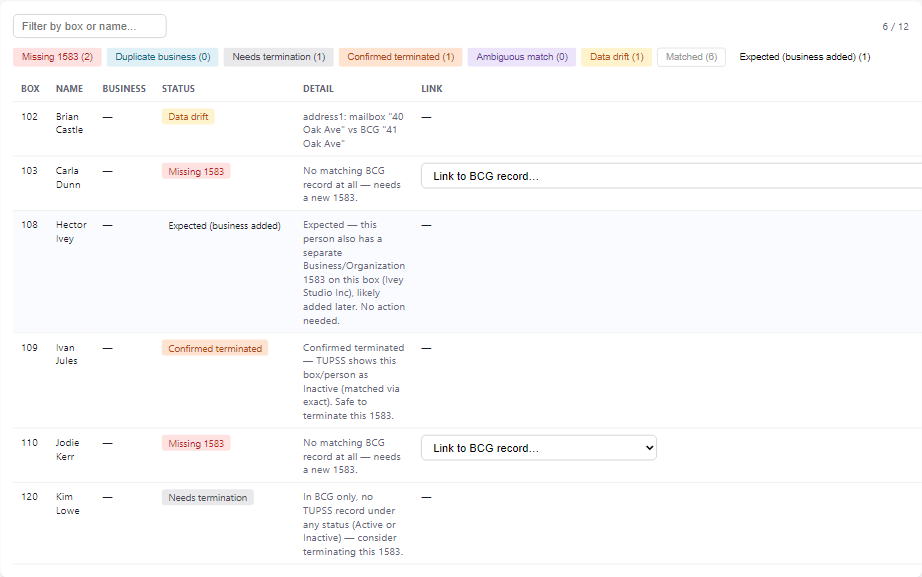
Type in the search box to find a box number or a name. Click a coloured button to show or hide that status. Matched rows are hidden to start with, so you only see what needs attention. Scroll to the right for the Recheck column.
Every row has a Detail that says what was found. The status tells you what to do:
| Status | What it means | What to do |
|---|---|---|
| Missing 1583 | MPS has this holder, but BCG has no matching form. | Create the 1583 in BCG. CMRA Sync does not do it for you yet. |
| Duplicate business | MPS lists the same business twice on one box. | Delete the extra copy in MPS, then use ↻ (below). |
| Needs termination | BCG has a form that MPS has no record of, active or ended. | Look into it. If it is not a real customer, end the 1583 in BCG. |
| Confirmed terminated | MPS shows this box and person as ended. | It is safe to end the 1583 in BCG. |
| Ambiguous match | More than one BCG form is equally close. | Pick the right one in the Link menu. |
| Data drift | The two match, but a detail differs. The Detail names it. | Fix whichever side is wrong. MPS is normally the one to trust, so fix BCG. |
| Matched | The two agree. | Nothing. |
| Expected (business added) | A person has an older personal 1583 beside a newer business 1583. | Nothing. This is normal. |
Below the list, three small tables show Expired, Expiring soon and Missing expiration date for the IDs on BCG forms.
Not available yet
There is no button here that creates or changes a form in BCG. Creating 1583 drafts is switched off while it goes through a compliance review. CMRA Sync only shows you what to fix.
Link two rows by hand
Sometimes the same person is spelled differently in MPS and BCG, so CMRA Sync cannot join them.
- On the Missing 1583 or Ambiguous match row, open the Link to BCG record... menu.
- Pick the BCG form that belongs to this person.
The two rows join into one Matched or Data drift row. Click Unlink on that row to undo it. Links are saved for the next comparison. A link only changes what Review shows. It does not change BCG.
Fix and check
- Fix the problem in MPS or BCG.
- Click ↻ on that row. The box joins a Recheck list at the top.
- In the MPS panel, the BCG panel, or both, click Rescrape Review's recheck list. Each panel reads only the boxes waiting on its own side.
- Keep Review open. It recomputes by itself and a bar tells you so.
If you only fixed one side, take the box off the list with its ✕, or click Clear list.
What happens next
Nothing is sent anywhere. Your reports stay on this computer. Review keeps your last 30 reports. Pick an older one from the second list at the top.
If something looks wrong
- Compute Diff says "No BCG extract saved" or "No MPS extract saved". See Nothing to compare.
- A bar says the store is not licensed. Saved reports stay readable. See Not licensed.
- More: Troubleshooting.