Appearance
Run a comparison
Do this when you want to know whether your MPS box holders and your BCG Form 1583 records agree. Owners and managers, or anyone who can sign in to both MPS and BCG.
A comparison has three parts: read MPS, read BCG, then compare on the Review page. You can do MPS and BCG in either order.
CMRA Sync works inside the browser tab you are already using. It never types your username, password or two-step code. It only reads the pages. Before you start, set up your store and check it says Licensed.
Read your boxes from MPS
- Sign in to MPS yourself and pick your center. The page header shows My Center and your store number.
- Go to Search / View Agreement.
- Find the MPS Extractor panel at the bottom right. Its top line should say Licensed.
- Click Start.
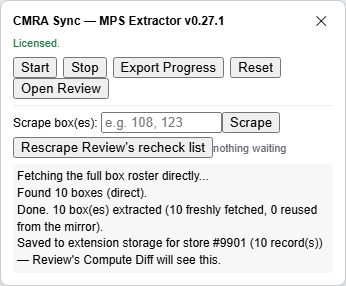
The panel shows progress and a running log. It reads every box, active and ended, so a store with a long history takes a while. Keep the tab open.
When it says Done, two things have happened. Your browser downloads a file named mps-extract- and a date. The same information is saved inside CMRA Sync, ready to compare. That downloaded file holds customer details: see What CMRA Sync never sends.
If you need to stop, click Stop. Progress is saved after every box. Click Start again to carry on where it stopped. If MPS signs you out, sign back in. The run picks up again by itself.
Read your forms from BCG
- Sign in to BCG yourself. Go to Mailing Services, then Commercial Mail Receiving Agency, then Go to Service.
- In the new BCG page, open 1583, then Agent Location List.
- Find the BCG Extractor panel at the bottom right.
- Next to Store, pick your store. With one store it is already picked. The top line should say Licensed.
- Click Start.
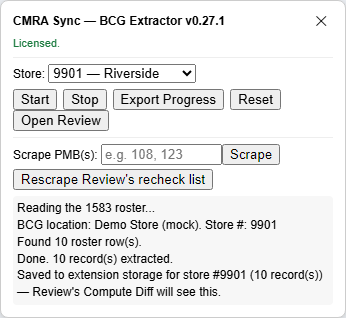
The page reloads once to get the latest list. Then CMRA Sync opens each 1583 in turn, so the page keeps loading. That is normal. Do not use that tab for anything else until the panel says Done. A download named bcg-extract- and a date follows, and the data is saved the same way.
If BCG signs you out, sign back in and click Start again. It carries on from where it stopped.
Compare
- Click Open Review in either panel. A new tab opens.
- Open the Import data / compute diff / export & import store data bar.
- Under 2. Compute diff, pick your store and click Compute Diff.
The result appears. Read it in Read the reconciliation.
Read just a few boxes again
After you fix something, you do not need to read the whole store again.
- In the MPS panel, type the box numbers in Scrape box(es), such as
108, 123. Separate them with commas or spaces. - Click Scrape.
- Do the same in the BCG panel, in Scrape PMB(s).
If you added boxes to Review's recheck list with ↻, click Rescrape Review's recheck list instead. See Read the reconciliation.
Close or reopen the panel
Click ✕ to close a panel. It shrinks to a small tab saying MPS Extractor ▲ or BCG Extractor ▲. Click that to open it again. Closing a panel does not stop a run.
What happens next
The results stay on this computer. Nothing is sent to us. The Review page recomputes by itself when new data is saved.
If something looks wrong
- The top line is red and the buttons do nothing. See Not licensed.
- There is no panel. See The panel is missing.
- The panel says it could not read the store number. See The panel is missing.
- More: Troubleshooting.