Appearance
Set up your store and sign in
Do this after you install the extension, and again for each store you add. Anyone who can use the computer can do it, but you need an FSC account whose organisation has a CMRA Sync licence.
Steps
- Open the CMRA Sync setup page. Click the extension's icon in the toolbar if it is not already open.
- In 1. Sign in, click Sign in.
- A sign-in window opens. Sign in with your FSC account, the same one you use for the Scheduler (see Sign in). If asked for a two-step code, enter it. Your password goes to that window, never to CMRA Sync.
- Back on the setup page, look for Licensed until and a date. That means you are signed in.
- In 2. Your stores, type your Store number. Use the number MPS shows next to My Center.
- Type a Name if you like, such as
Riverside. It only helps you tell stores apart. - Leave BCG location id empty, or fill it in (see below).
- Click Add store.
The store shows in the table. Its Licence column says Licensed in green.
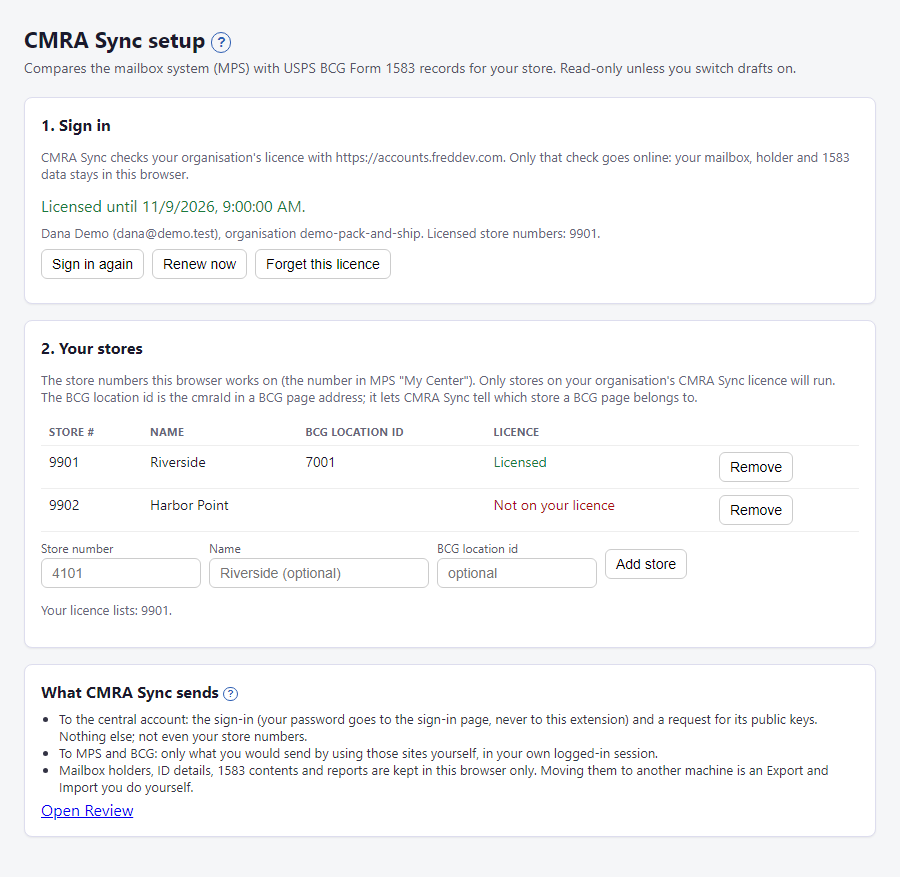
Add another store the same way if you run more than one.
The BCG location id
BCG has its own number for each store. You can see it in the address of a BCG form page, after cmraId=. If you add it, CMRA Sync knows which store a BCG page belongs to without asking. It is optional. With only one store, CMRA Sync picks that store for you anyway.
What happens next
The MPS Extractor and BCG Extractor panels now work for that store. See Run a comparison.
If something looks wrong
- The store says Not on your licence. Your organisation's licence does not list that store. See Not licensed.
- The store says Sign in first. Click Sign in in step 1.
- "3 to 6 digits". A store number has three to six digits and nothing else.
- You see "Saved data found for" and a button such as Add 9901. That store has saved data on this computer but is not in your list. Click the button to add it back.
- More: Troubleshooting. Every setting on this page is explained in Settings.