Appearance
Sign in
Sign in whenever a tool sends you to the FSC sign-in page. It is the same page for every tool. Anyone with an account can do this.
Steps
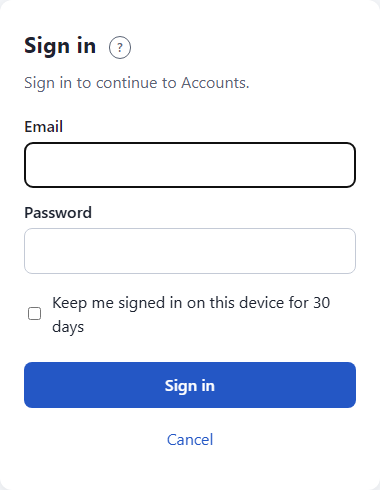
- Open the tool you want, such as the Scheduler. If you are not signed in, it takes you to the FSC sign-in page. The page says Sign in to continue to and the tool's name.
- Type your Email.
- Type your Password.
- Tick Keep me signed in on this device for 30 days only if the device is yours or your store's own. Leave it empty on a shared or borrowed computer.
- Click Sign in.
What happens next
- Owners and general managers are asked for a six-digit code from their phone. See Sign in with two-step.
- If you belong to more than one business, you pick one. See Choose a business.
- Then you land in the tool, and it works. Other FSC tools you open in the same browser do not ask you to sign in again.
How long you stay signed in
| You chose | You stay signed in for |
|---|---|
| Keep me signed in ticked | 30 days on that device |
| Left empty | 12 hours, or until you close the browser |
Signing out
Pick Sign out in the tool. The page asks Do you want to sign out of every app on this device? Click Yes, sign me out. Click No, stay signed in to stay.
When the page asks for your password again
Before a sensitive step, such as changing your kiosk PIN, a tool may show Confirm your password. Type your password and click Sign in. You do not need to start over.
If something looks wrong
- Invalid email or password. Check both and try again. We show the same message for a wrong password and an unknown email, on purpose.
- Too many wrong passwords. Try again in ... Wait the time shown. See Troubleshooting.
- You forgot your password. Ask your owner or general manager to send you a reset link.
- This sign-in page has expired. Go back to the tool and sign in again.
- More help: Troubleshooting.