Appearance
Set up two-step sign-in
Two-step sign-in adds a second lock to your password: a six-digit code from an app on your phone. Owners and general managers must use it. You set it up the first time you sign in, and it takes about two minutes.
Area managers and employees are not asked for a code.
Before you start
Install an authenticator app on your phone. Google Authenticator, Microsoft Authenticator and 1Password all work. A text message is not used.
Steps
- Sign in with your email and password. See Sign in.
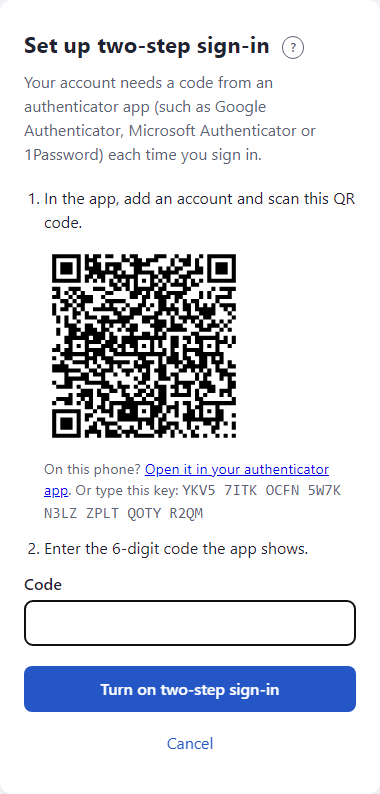
- The page Set up two-step sign-in opens. It shows a QR code.
- On your phone, open the authenticator app and add a new account. Choose Scan a QR code and point the camera at the code on your screen.
- On the phone itself? Click Open it in your authenticator app, or type the key shown under the code.
- The app now shows a six-digit code that changes every 30 seconds. Type it in Code.
- Click Turn on two-step sign-in.
- The next page, Save your recovery codes, shows ten codes. Save them now. See Recovery codes.
- Click Continue.
What happens next
You are signed in. From now on, every sign-in asks for a code after your password. See Sign in with two-step.
We also email you A new authenticator app was set up. If you did not set it up, tell your manager at once.
If something looks wrong
- That code didn't work. Wait for the next code and try again. Check that your phone's clock is on automatic time.
- Too many wrong codes. Try again in ... Wait the time shown, then try the next code.
- An authenticator app is already set up for this account. Someone, perhaps you, did this already. Enter the code from that app.
- You change phones or lose the app. There is no way to move it yourself yet. See Troubleshooting.
- More: Troubleshooting.