Appearance
Reset a password
Use this when someone forgot their password, or wants a new one. There is no "forgot password" button on the sign-in page: an owner or general manager sends a reset link. You can also send one to yourself while you are signed in.
If you forgot your password
Ask your owner or general manager to send you a link. Then:
- Open the email Set a new password.
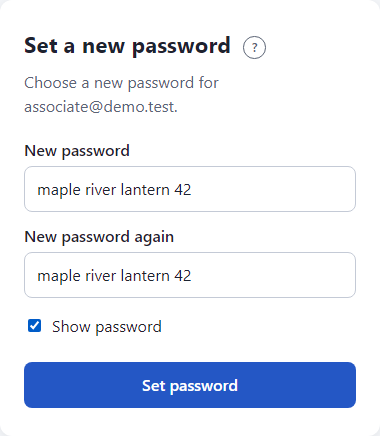
- Click the link. The page is titled Set a new password and says Choose a new password for your email.
- Type it in New password.
- Type it again in New password again. Tick Show password to check both.
- Click Set password.
You see Password set. Open the tool and sign in with the new password.
If you are the owner or manager sending the link
- In the Scheduler, open Manage, then Admin, then the Employees tab.
- Find the person.
- Click Send reset link.
The page says A reset link was emailed to the person's name. It works once, for one hour. Nobody but the person sets the password; you never see it.
Sending another link replaces the first. Send reset link shows only for someone who has already joined. For someone who has not, the button says Send invite or Resend invite.
If you want to change your own password
- In the Scheduler, open your name in the menu, then My account.
- Under Password, click Email me a link.
- Open the email and follow the steps above.
What happens next
- You are signed out everywhere. Any device that had your old password stops working.
- Any wait caused by wrong passwords is cleared.
- We email you Your password was changed. If you did not do it, tell your manager at once.
If something looks wrong
- This link is invalid or has expired. Ask your manager to send a new one. The link works once and lasts one hour. Ask for another.
- The two passwords are not the same. Type them again.
- That password is one of the most common ones. Choose another. A few unrelated words work well. Use at least 8 characters.
- Nobody can send me a link. If you are the only owner, contact us.
- More: Troubleshooting.