Appearance
Recovery codes
Recovery codes let you sign in when you do not have your phone. You get ten of them when you set up two-step sign-in. Each one works once.
Save them
- After you turn on two-step sign-in, the page Save your recovery codes shows ten codes, like
abcd-efgh-jkmn-pqrs. - Copy them somewhere safe and private. A password manager is best. A printout in a locked drawer also works.
- Click Continue.
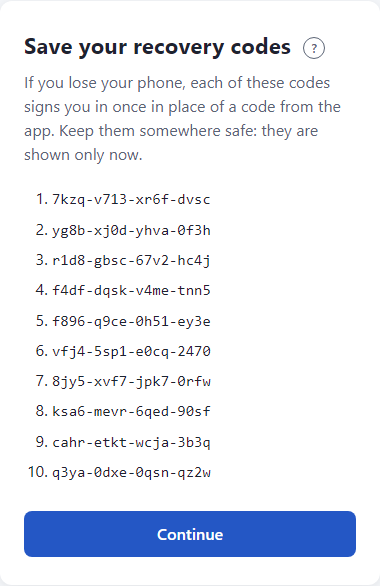
The codes are shown only once. If you click Continue without saving them, we cannot show them again. If you reload the page, it shows only a Continue button.
Do not keep them on the same phone as your authenticator app, and do not email them to yourself.
Use one
- Sign in with your email and password.
- On Enter your code, type a recovery code in Code. Dashes and capital letters do not matter.
- Click Continue.
You are signed in. That code is now used up. Each use leaves you with one fewer.
When they run out
You cannot make a new set yourself yet. Before you run low, contact us. We reset your two-step sign-in, and you set it up again at your next sign-in. That gives you a new authenticator and ten new codes. See Troubleshooting.
Not available yet
Making a new set of recovery codes, or moving your authenticator to a new phone, from your own account is not available yet.
If something looks wrong
- That code didn't work. A recovery code works once. Check you did not already use it, and that you typed all 16 characters.
- I never saved them. Contact us to reset two-step sign-in, as above.
- More: Troubleshooting.