Appearance
Register store devices
Register the computer you use as a time clock kiosk, or a store laptop, so its apps open without anyone signing in. Only owners and general managers can do this. Do it on the device itself, in the browser the device will use.
A device here is one browser on one computer. Registering marks that browser as belonging to your store.
Steps
- On the device, open
accounts.freddev.com/devicesin the browser you will use for the kiosk. - Sign in with your own email and password, then your two-step code. See Sign in.
- If you belong to more than one business, pick the right one.
- If you were already signed in, type your password again when asked.
The Devices page opens. It says who is signed in and that the page closes after 10 minutes.
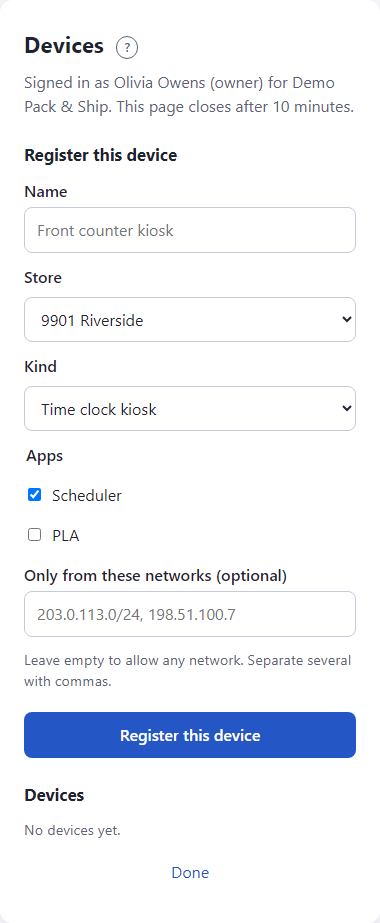
- In Name, type a name, such as
Front counter kiosk. - In Store, pick the store the device is in. Only your open stores are listed.
- In Kind, pick Time clock kiosk or Store laptop.
- Under Apps, tick what the device may open: Scheduler, PLA, or both.
- Leave Only from these networks (optional) empty to allow any network, or type your store's public internet (IP) address or network, separated by commas, such as
203.0.113.0/24, 198.51.100.7. - Click Register this device.
You see Device registered: This device is registered. Its apps can now open without anyone signing in, and nobody is signed in on it.
What happens next
- The device opens its apps on its own. At the kiosk, people use their PIN, not a password.
- You are not left signed in. The page signs you out of this browser, because a kiosk is shared.
- The registration lives in this browser. If you clear its cookies and site data, or switch to another browser, register again.
See and remove devices
- Open
accounts.freddev.com/devicesand sign in as above. - Under Devices, each device shows its name, store, kind, apps and networks.
- Click Remove next to a device that is lost, replaced or moved.
A removed device shows Removed and stops working. Click Done when you finish.
If something looks wrong
- Only an owner or general manager can register devices. Your role in this business does not allow it. Ask your owner.
- Confirm your password again to register a device. Your password was typed too long ago. Open the page again and sign in.
- This page has expired. Start again. The page closes after 10 minutes. Open it again.
- "..." is not an IP address or network. Fix the entry in Only from these networks, or empty the box.
- Choose one of your active stores. The store is closed or not yours. Add it first under Stores.
- The kiosk says it is not set up, or refuses the device. It may be removed, on the wrong network, or its browser data was cleared. Register it again.
- More: Troubleshooting.