Appearance
Sign in with two-step
After you set up two-step sign-in, every sign-in asks for a code from your phone after your password. Owners and general managers do this.
Steps
- Sign in with your email and password. See Sign in.
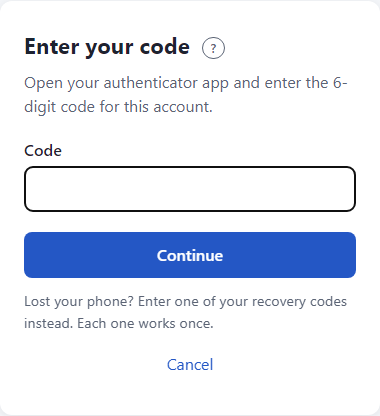
- The page Enter your code opens.
- Open your authenticator app and find the six-digit code for your FSC account.
- Type it in Code.
- Click Continue.
What happens next
You are signed in. If you belong to more than one business, you pick one next. See Choose a business.
Lost your phone?
Type one of your recovery codes in the same Code box instead. Each recovery code works once. See Recovery codes.
Good to know
- The code changes every 30 seconds. A code works only once, so if you just used it, wait for the next one.
- You are not asked again while you stay signed in. See How long you stay signed in.
- A tool may ask you to type just your password again before a sensitive step. You do not need a new code for that.
If something looks wrong
- That code didn't work. Check your authenticator app and try again. Wait for a fresh code. Check that your phone's clock is on automatic time. Check you are looking at the FSC account in the app.
- Too many wrong codes. Try again in ... Wait the time shown. The wait grows with each wrong try, up to 30 minutes.
- Your sign-in settings changed. Sign in again. Support reset your two-step sign-in while you were signing in. Sign in again and set it up again.
- No phone and no recovery codes. See Troubleshooting.