Appearance
Accept an invite
Do this once, when a manager or owner invites you to join their business. Open the link in the invite email.
Steps
- Open the email called You're invited to join and the business name. It says who invited you and what your role is.
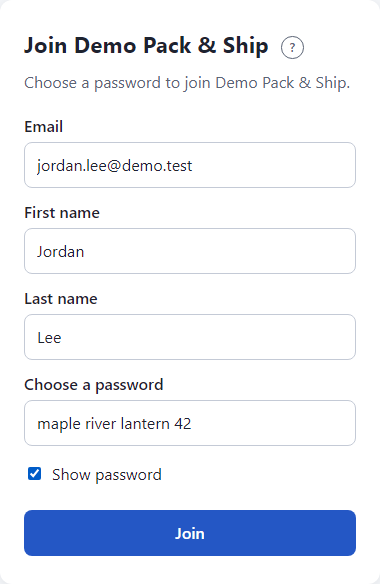
- Click the link in the email. It opens a page titled Join and the business name, which says Choose a password to join.
- Check your First name and Last name. Fix them if they are wrong.
- Type a password in Choose a password. Use at least 8 characters. Tick Show password to check what you typed.
- Click Join.
You see Welcome, and You have joined the business name.
What happens next
Open the tool your manager told you about, such as the Scheduler, and sign in with your email and the password you just chose. See Sign in.
Good passwords
- At least 8 characters.
- Not one of the very common passwords, and not your own email address. Several unrelated words work well.
If you already have an account
If your email already has an FSC account, for example from another business, the page says You already have an account. Type your password to join the business. Type the password you already use. We never change it. Then click Join.
If something looks wrong
- This invite link is invalid or has expired. The link works once and lasts 24 hours. Ask your manager to click Resend invite; a new link replaces the old one.
- The link was already used. Then you are already in. Go to the tool and sign in. If you forgot the password, ask your manager for a reset link.
- The password is refused. Read the message above the button: too short, or too easy to guess. Choose another.
- No email arrived. Look in your spam folder, then ask your manager to send it again. See Invite people.