Appearance
Ask for a time card fix
Check your hours, and ask for a change if a punch is wrong or missing, like a clock-out you forgot. Anyone on the schedule can do this. A manager makes the change after they review your request.
Check your time card
- Open Time, then Time Cards.
- The page shows a two-week pay period. Click ‹ or › to look at other periods. The current one says in progress.
- Your hours are in a row with your name: Regular, OT (overtime), Personal, Sick and Paid total.
- Click Open my time card. You see each day's punches: In, Break out, Break in, Out, the length of the break and your paid hours.
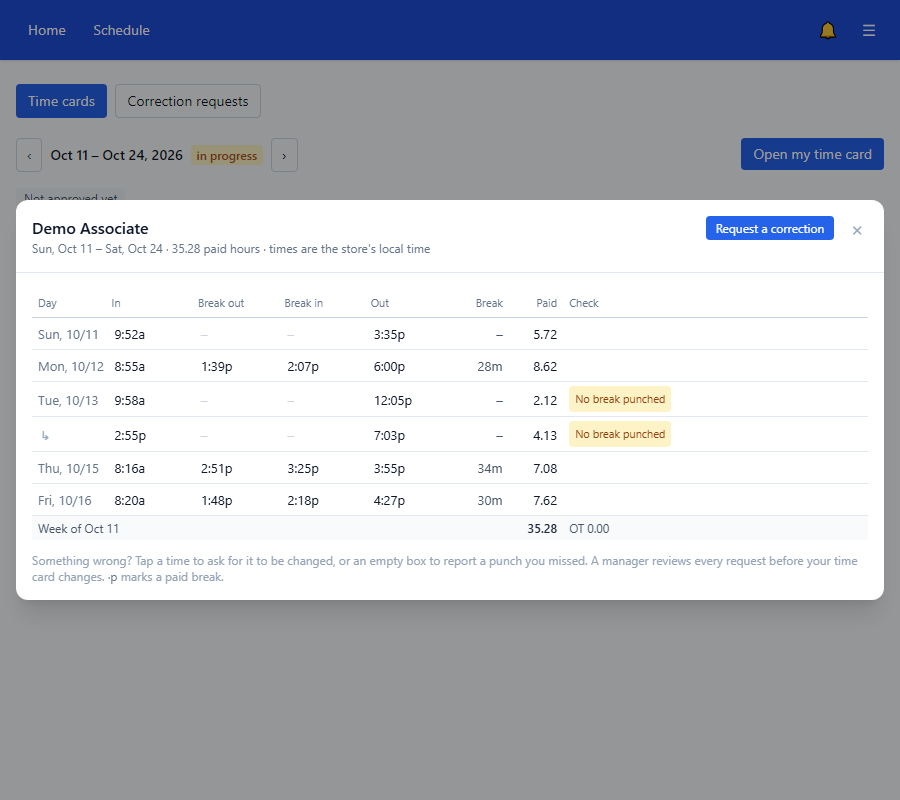
If something needs a look, a yellow box says Things to check on your time card and tells you what and when. The most common ones:
| Label | What it means |
|---|---|
| Missed shift | You had a shift but no punches. |
| No clock-out | You clocked in and never clocked out. |
| Stray punch | A punch that does not fit the others, like a second clock-in. |
| Forced clock-in | You clocked in without a shift on the schedule. |
| Break not punched | A break was scheduled but you did not punch it, so the whole time was counted as paid. |
| Long break | A break ran longer than scheduled. |
The chip near the top says Not approved yet or Approved. Approved means a manager has checked the period for payroll.
Ask for a fix
- To change a punch that is already there, click its time on your time card. To add a punch you forgot, click the empty box where it belongs. You can also click Request a correction.
- Fill in the form. For an existing punch, enter the date it should be on, the Correct time and Why does it need changing?. For a missed one, pick the store, the date, Which punch, the Exact time and the reason. Write at least a few words.
- Click Submit request. If you signed in a while ago, it takes you to the sign-in page to type your password, to be sure it is you. It brings you back to your form with what you wrote. Click Submit request again.
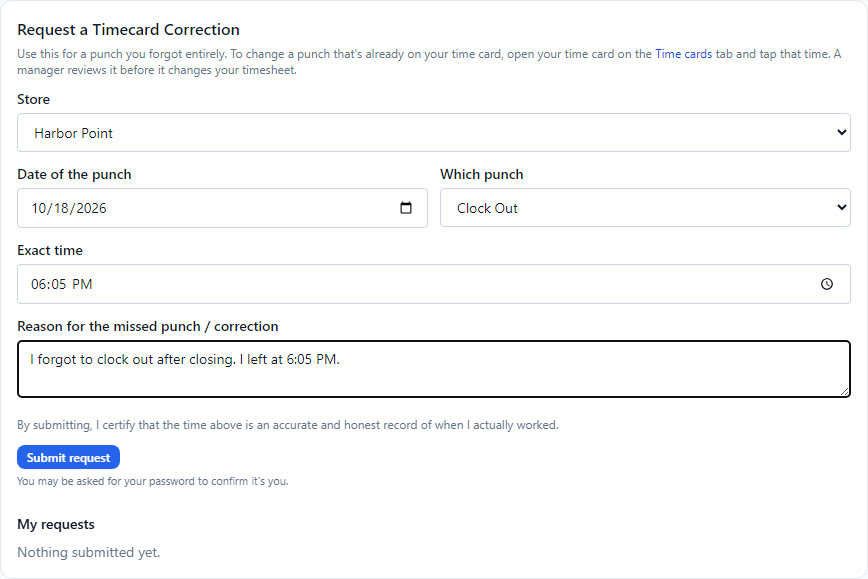
Read the line above the button. By submitting you say the time is true and honest.
What happens next
A manager reviews it. They may use a slightly different time than you asked for. You get a notification: Timecard correction approved or Timecard correction denied. Your time card changes only once it is approved.
Open Time Cards, then Correction requests any time to see your requests. A denied one shows the reason after Denied:. An approved one shows the time that was used.
You can ask for a fix even after the pay period is approved. A manager has to re-open the period first, so tell them.
If something looks wrong
- I cannot change my time card myself. That is on purpose. Only a manager can change punches. Your job is the request.
- Your pay period shows "isn't set up yet". Ask your manager. Your store's pay period start date is not set.
- The request is still pending. Ask your manager. They get a message when you send it.
- A box called Timecard Correction Needed appeared. You punched away from the store. Fill it in. See Clock in from your phone.