Appearance
Set your availability
Tell your manager the times you cannot work, like every Monday evening or one Saturday morning. Anyone on the schedule can do this.
Away for whole days, like a vacation? Use time off instead.
Steps
- Open Schedule, then Availability. On a phone, tap ☰, then Availability.
- Under Add availability, pick Recurring weekly for a time that repeats every week, or Specific date for one day.
- Pick the Day of week, or the Date.
- Next to Type, pick Unavailable for times you cannot work.
- Set the Start and End times. For a whole day, use 12:00 AM to 11:59 PM.
- Click Add.
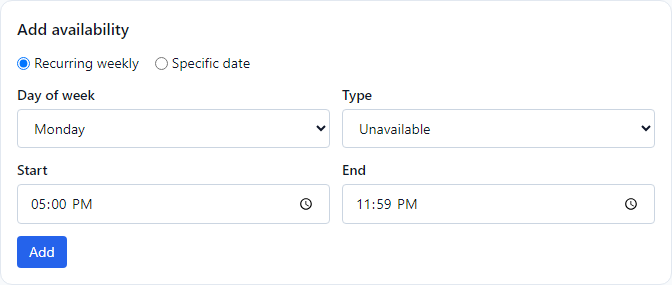
The new line shows up under Current availability, like Monday · 17:00–23:59 · unavailable. To remove a line, click Remove next to it. To change one, remove it and add it again.
What happens next
It is saved right away. No one has to approve it, and your manager is not sent a message.
When your manager builds the schedule, they see a grey dashed Unavailable box in your row for those times. If they schedule you then anyway, the shift gets a ⚠ so they can see the clash. Availability is a heads-up, not a lock: your manager can still schedule you, so keep them posted if something changes.
You see your own Unavailable boxes on your schedule too. Nobody else sees them.
Available is also on the list of types. Those lines are saved on your page, but the schedule only uses Unavailable today.
If something looks wrong
- A red message shows under the form. Check that you filled in both times and, for Specific date, picked a date. Then click Add again.
- A line is wrong. Click Remove and add it again.
- Your manager scheduled you on a time you marked. Talk to them. It does not change automatically.