Appearance
Notifications
Scheduler tells you about your shifts and requests in the bell, and on your phone if you turn that on. Anyone with a login can do this.
The bell
- Look for the bell 🔔 at the top right. A red number on it counts what you have not read.
- Tap it to see the list, newest first. Unread ones have a light blue background.
- Tap a notification to go to the right screen. It is marked as read.
- Tap Mark all read to clear the number.
The list says You're all caught up. when there is nothing new.
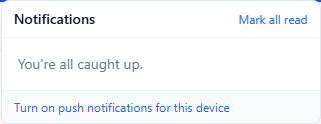
The bell refreshes by itself about once a minute and when you come back to the app.
What you may get
| Notification | When |
|---|---|
| Shift at your store starts at a time | An hour before a shift. |
| New schedule published | Your manager published new shifts for you. |
| Your schedule was updated | Your manager changed shifts you already had. |
| Shifts removed from your schedule | A shift of yours was taken off. |
| You haven't clocked in | Your shift started 15 minutes ago and you have not clocked in. Your managers get one too. |
| You're still clocked in | Your shift ended 15 minutes ago and you are still on the clock. |
| Required tasks are still open | Tasks that must be finished are open as you get close to leaving. |
| Time off approved or Time off denied | A manager decided your time off request. |
| Time off added | A manager entered time off for you. |
| Timecard correction approved or denied | A manager decided your correction request. |
| New announcements and reminders to acknowledge them | See Announcements, handbook and forms. |
Get them on your phone (push notifications)
Push notifications show up on your phone even when the app is closed. You turn them on once for each device.
- Tap the bell, then Turn on push notifications for this device. You can also find it on the Timeclock page.
- Your phone or browser asks to allow notifications. Tap Allow.
- The link changes to Push notifications are on for this device.
- Tap Send a test to check. You should get a notification right away. Test in 15 s (close the app) sends one after 15 seconds, so you can close the app first and see that it still arrives.
To stop them on that device, tap Turn off. Signing out also turns them off on that device. They come back when you sign in again, if the device still allows notifications.
On an iPhone or iPad, first add Scheduler to your Home Screen: open the page in Safari, tap the share button, then Add to Home Screen. Open Scheduler from the new icon and turn on notifications there. A plain Safari tab cannot do push.
Not available yet
You cannot pick which notifications you get, and Scheduler does not send text messages. You get all of the ones above.
If something looks wrong
- The link says notifications are blocked. You said no earlier. Allow notifications for this site in your phone or browser settings, then come back.
- The link says push is not available here. On an iPhone or iPad, add Scheduler to your Home Screen first, as above.
- The test did nothing. Tap Turn off, then turn push on again.
- You get shift alerts on a shared device that are not yours. Notifications go to whoever signed in on that device last. Sign out when you are done.