Appearance
Clock in at the kiosk
Clock in, take a break and clock out on the store's shared screen with your name and a PIN. Anyone on the schedule who has set a kiosk PIN can do this.
The kiosk is the shared tablet or computer the store set up for clocking in. It shows Store Timeclock and a big clock at the top.
Steps
- Tap your name in the list. Not there? Ask your manager to check that you are assigned to this store.
- Type your PIN on the number pad. The digits show as dots. Tap ⌫ to fix a mistake.
- Tap Continue. You see what you can do right now.
- Tap Clock In. Or Start Break, End Break or Clock Out, whichever is on screen.
- The screen goes back to the name list and shows a line like Sam: Clock In at 9:00 AM. For a break it also shows when to be back.
Not you? Tap Not you? at the top of the PIN screen. When you are done looking, tap Done. If nobody touches the screen for a minute after you enter your PIN, it goes back to the name list by itself, so the next person never sees your screen.
You can add a note for your manager first. Tap + Add a note, type, then tap your punch button.
Things you may see after you clock in
- Announcements or the handbook that need your acknowledgement. They show up once you are clocked in, so reading is paid time. Read, then tap the button and type your password. See Announcements, handbook and forms.
- Your tasks today. Tap Done or Can't finish on each one.
- Today's store tasks on the name list. Anyone on the clock can do these. Tick what you finished, then tap your name and enter your PIN. All the ticked tasks are marked done at once.
- A break countdown after Start Break. It turns red when your break is over.
If you cannot clock in because there is no shift
The screen says when clock-in opens. If you are working anyway, tap Working anyway? Clock in…, pick a reason and tap Clock in now. Your manager is told.
If something looks wrong
- "Incorrect PIN." The screen says how many tries are left. After the second wrong try you must wait 15 seconds, then 1 minute, then 5 minutes. After five wrong tries in a row your PIN locks and a manager has to reset it.
- "Enter your PIN first." Type at least 4 digits.
- The screen says "This device is not registered as a kiosk." It is not set up yet. An owner or general manager must register it. Tell your manager.
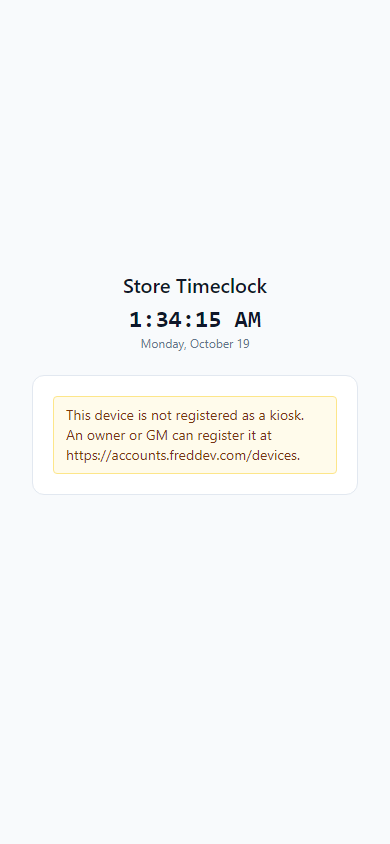
- A red message shows instead of the names, or the screen says the store is not set up. The kiosk only works on the store's own internet connection, and the store must be set up first. Tell your manager.
- "No kiosk PIN set for that employee." You have not set a PIN yet. See Set your kiosk PIN.
- You clocked in at the wrong time. See Ask for a time card fix.