Appearance
Clock in from your phone
Clock in, take your break and clock out on your own phone or a computer, instead of the store kiosk. Anyone on the schedule can do this, if the store allows clocking from personal devices.
Before you start
- You need a shift on the schedule at that store. Clock-in opens 5 minutes before the shift starts, and stays open until the shift ends. Your store can change the 5 minutes.
- If your phone asks to share its location, tap Allow. The store checks that you are at work when you clock in. (On the store's own wifi it may not ask.)
Steps
- Open Time, then Timeclock. On a phone, tap ☰, then Timeclock.
- If you work at more than one store, pick the store at the top.
- Tap Clock In. The button is green.
- To take your scheduled break, tap Start Break. It shows how long the break is and whether it is paid. A countdown starts. Tap End Break when you are back.
- When you finish, tap Clock Out. The button is red.
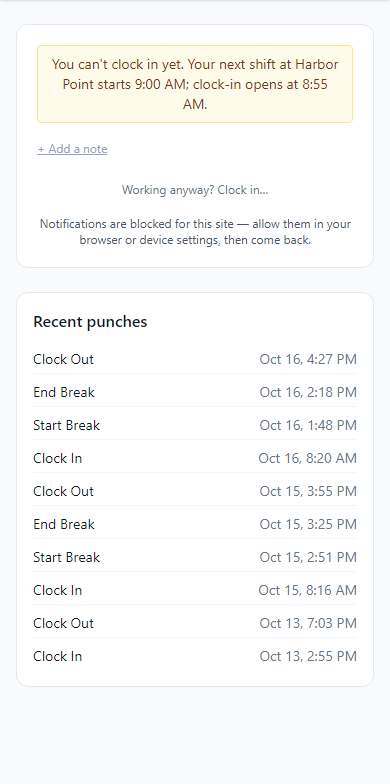
After each tap you see a message like Clock In recorded. Your last ten punches are listed under Recent punches.
Want to leave a comment for your manager, such as "forgot to clock in"? Tap + Add a note first. The note is saved on whichever button you tap next, and your managers can read it.
Breaks
You get one scheduled break per shift, the one on your schedule. The page tells you if no break is scheduled or you already took it. For an extra break, tap Clock Out, then Clock In again when you are back.
Tasks
If your store uses daily tasks, they appear under Your tasks today once you are clocked in. Tap Done when you finish one. Tap Can't finish and pick a reason if you cannot. When you tap Clock Out with tasks still open, you see Before you go with what is left. Tap Clock out now to leave anyway. Clocking out is never blocked.
If you are not on the schedule
If you are working without a shift, tap Working anyway? Clock in… under the notes. Pick why from the list, add a short note if you like (Other needs one), and tap Clock in now. Your hours count, and your manager is told it was not on the schedule.
If something looks wrong
- A yellow note says you can't clock in yet. It tells you when clock-in opens. Wait until then, or use Working anyway? Clock in… if you are already working.
- It says you do not have a shift. Check your schedule. If the shift should be there, ask your manager.
- It says you are too far from the store. The message shows how far you are and how close you must be (100 meters unless your store changed it). Move closer and try again. If you are at the store, check that your phone's location is turned on for your browser.
- It says the store does not allow clocking from personal devices. Use the store's kiosk, or a computer on the store's network. See Clock in at the kiosk.
- A box called Timecard Correction Needed covers the screen. You clocked out or took a break away from the store. Enter the time it really happened and a short reason, then confirm with your password. You cannot use the rest of Scheduler until you do. A manager reviews it. See Ask for a time card fix.
- You forgot to clock out. Ask for a fix once you are back. See Ask for a time card fix.