Appearance
Set your kiosk PIN
Your PIN is the short number you type on the store's shared clock-in screen. Set one before your first time at the kiosk. Anyone with a login can do this.
Steps
- Open your name menu at the top right of the screen, then My account. On a phone, tap ☰, then My account.
- Under Kiosk PIN, type a New PIN. It must be 4 to 8 digits.
- Type it again in Confirm new PIN.
- Click Set PIN. If you already have one, the button says Change PIN.
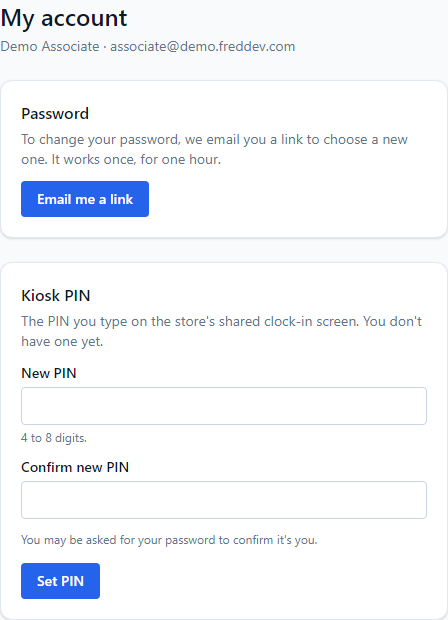
You see Kiosk PIN saved. The old PIN, if there was one, stops working.
If the page sends you to the sign-in screen, type your password. It does this when you last signed in a while ago, to be sure it is you. You come back to My account; type the PIN again and click Set PIN.
Tips
- Pick a number you will remember, but not your birthday or anything others could guess.
- Do not share it. Anyone with your PIN can clock you in and out at the kiosk.
If something looks wrong
- "A PIN is 4 to 8 digits." Use only numbers, and at least 4 of them.
- "The PINs don't match." Type the same number in both boxes.
- The page says your PIN was locked. Five wrong tries in a row locks it. A manager has to reset it. Saving a new one here will not unlock it.
- You forgot your PIN. Come back to this page and set a new one, unless it is locked.
Changing your password
The Password box on the same page sends you an email with a link to choose a new one. The link works once and lasts one hour. Click Email me a link. See Reset a password.