Appearance
See your schedule
Check when you work this week, next week or any other week. Anyone on the schedule can do this.
Steps
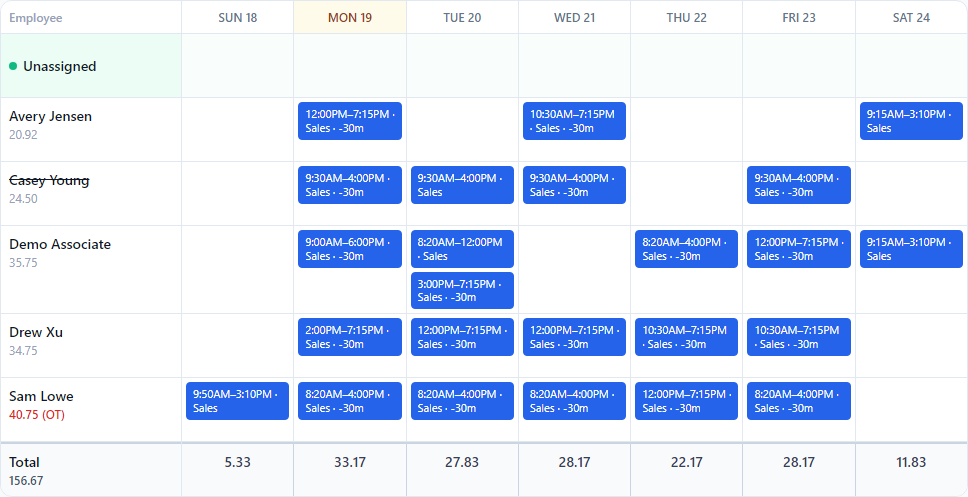
- Open Home to see your next shift and the shifts coming up in the next 14 days. Each one shows the day, the hours, the store, your position and any break.
- For the whole week, open Schedule. On a computer it is in the top menu. On a phone it is at the top left.
- Find your name in the left column. Your shifts are in the boxes across from it.
- Click → for next week, ← for last week, or Today to come back to this week.
- If you work at more than one store, pick the store from the box at the top.
Next time you open Schedule, it shows the store and week you looked at last.
Reading the grid
| You see | It means |
|---|---|
| A blue box with times, like 9:00AM–6:00PM | A shift. The times are the store's local time. Your position follows, like Sales. |
| -30m on a shift | An unpaid break of 30 minutes is taken out of the paid hours. |
| A number under a name | That person's paid hours for the week. It turns red with (OT) when it is over the weekly overtime limit. |
| Unassigned row at the top | Shifts nobody has been given yet. |
| Total row at the bottom | Everyone's paid hours for each day. |
| A yellow column heading | Today. |
| A grey striped column marked CLOSED | The store is closed that day. |
| A speech bubble on a day | A note from your manager. Hover over it, or tap it, to read it. |
| A striped pink box in your row | Time off of yours that was approved. |
| A striped yellow box with dashes | Time off you asked for that is still waiting. |
| A grey dashed box saying Unavailable | A time you marked yourself unavailable. |
| ⚠ on one of your shifts | That shift overlaps your time off or a time you said you were unavailable. Tell your manager. |
You only see your own time off and availability. Your coworkers' are private.
What you see, and when
You only see shifts your manager has published. Shifts they are still working on stay hidden, so next week may look empty until they publish it. When they do, you get a notification that says New schedule published. If they change a shift later, you get Your schedule was updated. See Notifications.
On a phone
The week is wider than the screen. Swipe sideways to see other days. Your coworkers' names stay in place on the left, and the grid opens on today.
Not available yet
Swapping shifts with a coworker, and picking up an unassigned shift yourself, are not in Scheduler yet. For now, ask your manager to change the schedule.
If something looks wrong
- A shift is missing. Your manager may not have published it yet. Check the store at the top if you work at more than one. If it still looks wrong, ask your manager.
- The hours are not what you were told. Show your manager the shift. They can change it.
- You see the wrong week. Click Today.