Appearance
Scheduler quick start for associates
See when you work, clock in and out, and ask for time off, all from your phone or any computer.
Before you start
- A login. Your manager sends you an invite by email. See the account quick start for associates.
- To be on your store's schedule. If your name is not on it, ask your manager.
- For the store's shared clock-in screen (the kiosk): a PIN you set yourself in step 3.
1. Sign in and look around
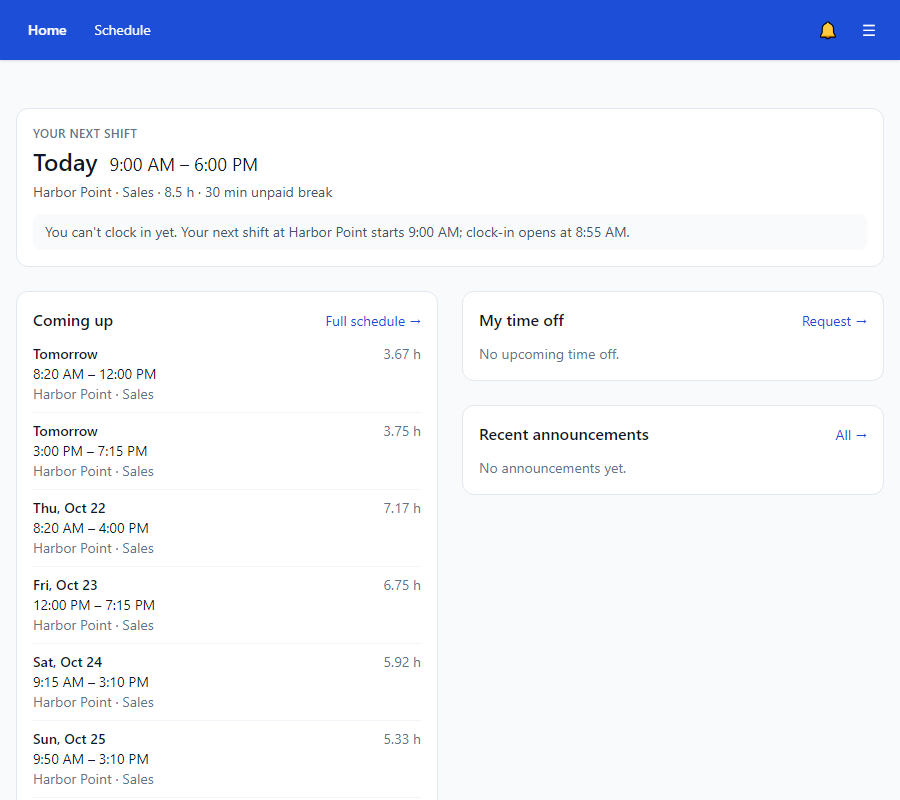
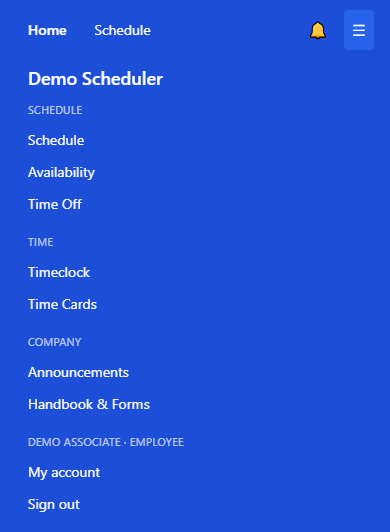
Open the Scheduler and sign in. See Sign in. You land on Home: your next shift, the shifts coming up, your time off and the latest announcements. The menu is across the top. On a phone, Home and Schedule are at the top left and everything else is under ☰.
2. See your schedule
Open Schedule to see the whole week for your store. Find your name in the left column. See See your schedule.
3. Clock in
Clock in on your own phone with Timeclock, or on the store's shared kiosk with your name and PIN. Clock-in opens a few minutes before your shift starts. See Clock in from your phone, Clock in at the kiosk and Set your kiosk PIN.
4. Tell your manager when you cannot work
Use Time Off for days you will be away. Use Availability for times that never work for you, like Monday evenings. See Request time off and Set your availability.
5. Check your time card
Open Time Cards to see your hours. If a punch is wrong or you forgot one, ask for a fix. See Ask for a time card fix.
What next
- Announcements, handbook and forms: things you may need to read and acknowledge.
- Notifications: shift reminders and updates on your phone.
- Request time off